h2 class=”wp-block-heading”>How to Choose a 27-Inch IPS Monitor Under CAD $300
Buying a 27-inch IPS monitor under CAD $300 sounds straightforward until you face dozens of nearly identical listings. A Reddit thread in r/homeoffice highlights the exact pain point: shoppers see conflicting specs, worry about dead pixels, and cannot tell which budget models are worth the risk. This article turns that confusion into a repeatable buying framework.
Why 27-Inch IPS Is the Sweet Spot for Most Desks
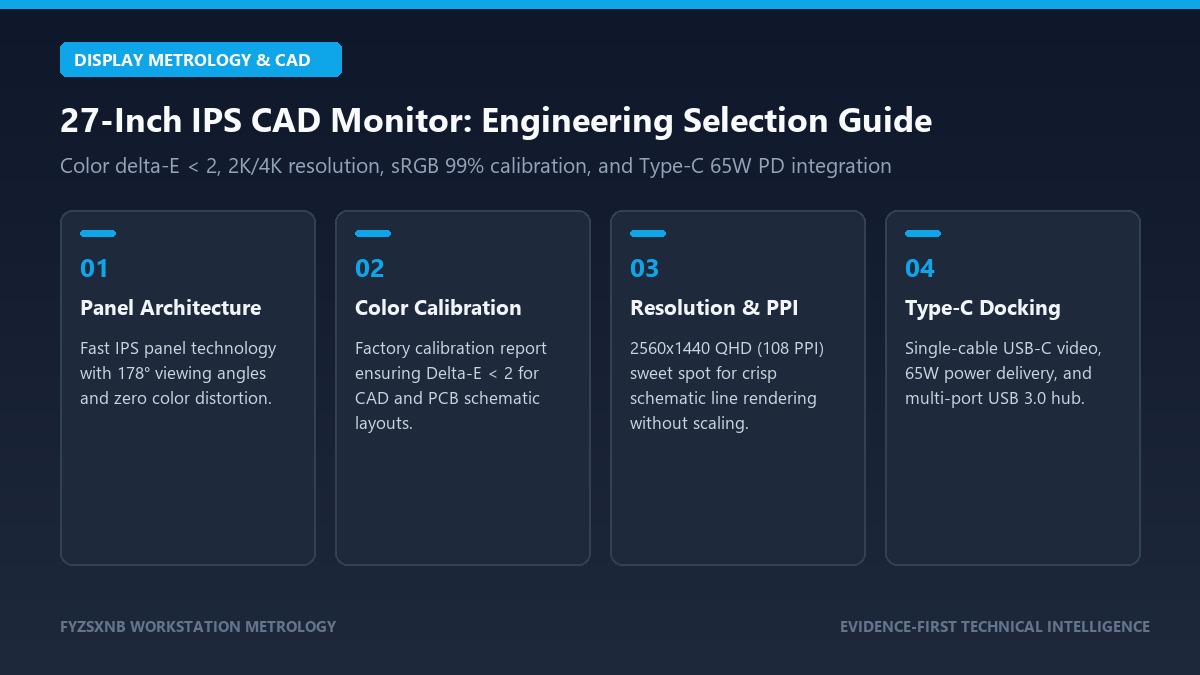
The 27-inch diagonal paired with an IPS panel hits a practical balance. At 2560×1440 (QHD), you get enough screen real estate for two documents side by side without the scaling issues common on 4K displays under 32 inches. IPS technology delivers consistent colors when viewed from an angle, which matters if you share the screen or use a monitor arm.
Under CAD $300, you are shopping in the entry-level QHD or premium 1080p tier. Most buyers in this bracket use the monitor for office work, content consumption, and occasional photo editing. Competitive gaming at high refresh rates usually requires stepping above this price point.
The Specs That Actually Matter Under CAD $300
Manufacturers love to pack spec sheets with buzzwords. Here are the items that change your daily experience.
Panel Type
IPS (In-Plane Switching) remains the best all-around choice for color accuracy and viewing angles. VA panels offer deeper contrast but slower pixel response. TN panels are faster for gaming but suffer from washed-out colors and poor off-angle viewing. At this price, insist on IPS unless you only play fast-paced games and never edit photos.
Resolution
QHD (2560×1440) is ideal for 27 inches. 1080p at this size produces visible pixelation during text work. CAD $300 sometimes dips into QHD territory during sales, but 1080p IPS monitors with strong color coverage are also acceptable for basic office use.
Refresh Rate
60 Hz is standard and fine for office tasks. 75 Hz or 100 Hz adds modest smoothness for general use. Do not expect true 144 Hz or adaptive sync (FreeSync/G-Sync) at this price without sacrificing panel quality or warranty support.
Ergonomics
Height adjustment, tilt, and swivel reduce neck and eye strain. Many budget monitors ship with a basic stand that only tilts. Check VESA mount compatibility (100×100 mm) so you can add an aftermarket arm later.
USB-C and Connectivity
USB-C with DisplayPort Alt Mode and power delivery is rare under CAD $300. Most models offer HDMI 1.4 or DisplayPort 1.2. If you use a modern laptop, budget for a dongle or prioritize monitors that include USB-C even if it means a smaller panel size.
Warranty and Return Policy
Budget monitors have higher defect rates for backlight bleed and dead pixels. A three-year warranty beats a one-year warranty. A retailer with a 30-day no-questions return policy protects you if the panel has uneven brightness or stuck pixels.
| Spec | Minimum Acceptable | Preferred Target |
|---|---|---|
| Panel | IPS | IPS with sRGB >99% |
| Resolution | 1920×1080 | 2560×1440 |
| Refresh Rate | 60 Hz | 75-100 Hz |
| Ergonomics | Tilt only | Height, tilt, swivel + VESA |
| USB-C | Not expected | DP Alt Mode (rare) |
| Warranty | 1 year | 3 years with dead-pixel policy |
What You Sacrifice at This Price and How to Minimize the Trade-Offs
No monitor under CAD $300 does everything well. Knowing the trade-offs helps you pick the right compromise.
Color accuracy out of the box is usually mediocre. Look for factory-calibration claims or plan to use a software profile. Backlight uniformity is another common issue; buy from a retailer with easy returns so you can exchange a unit with heavy edge bleed.
Build quality varies. Thin plastic bezels and wobbly stands are normal. A VESA mount solves the stand problem but adds CAD $40-80 for an arm.
| Trade-Off | Typical Budget Reality | Mitigation Strategy |
|---|---|---|
| Color accuracy | Delta E > 3 out of box | Use sRGB mode; consider calibration |
| Backlight bleed | Moderate IPS glow common | Buy from retailer with 30-day returns |
| Stand quality | Basic tilt-only plastic | Confirm VESA 100×100 compatibility |
| USB hub / USB-C | Usually absent | Use separate dock or dongle |
| HDR | Fake HDR (HDR10 label only) | Ignore HDR claims; focus on peak brightness |
Setup and Ergonomic Tips That Protect Your Eyes and Neck
Position the top of the screen at or slightly below eye level. Sit an arm’s length away (roughly 50-70 cm). Reduce ambient glare by placing the monitor perpendicular to windows.
Enable the monitor’s low-blue-light mode for evening use, but do not rely on it as a replacement for proper lighting. The American Optometric Association recommends the 20-20-20 rule: every 20 minutes, look at something 20 feet away for 20 seconds.
Warranty, Return Policy, and Buyer Protection in Canada
Canadian buyers should confirm whether the warranty is honored by a local distributor. Some grey-market imports from U.S. retailers void Canadian coverage.
Amazon Canada and Best Buy Canada both offer 30-day return windows on most monitors. Costco occasionally stocks 27-inch IPS models with a generous return policy and extended warranty through membership. Always check the dead-pixel policy; some manufacturers require multiple stuck pixels before they honor a replacement.
FAQ
Is 1080p acceptable on a 27-inch monitor?
It is usable for basic tasks, but text appears less sharp than on QHD. If you read documents for several hours daily, QHD reduces eye strain.
Can I use a budget 27-inch IPS monitor for photo editing?
Yes, for casual editing and social-media content. For professional print work, you need a wide-gamut display with hardware calibration, which starts around CAD $500.
Do I need a special cable?
Most monitors include an HDMI cable. For QHD at 75 Hz or higher, use HDMI 1.4 or DisplayPort 1.2. Older HDMI cables may limit refresh rates.
Is buying an open-box monitor safe?
Open-box units can save 10-20%, but inspect for dead pixels immediately. Only buy open-box from retailers with full return privileges.
References
Sources used in this framework: